Audio & wearables
How to Pair a Smartwatch with Your Phone (and Fix Common Problems)
Install the companion app named in the watch's manual (usually via its QR code), turn on Bluetooth, and pair from inside the app rather than your phone's Bluetooth menu. Then allow notification access and, on calling watches, accept the second Bluetooth pairing for calls. Most problems are fixed by granting app permissions and stopping battery optimisation from closing the app.
Most budget smartwatches and fitness bands pair through a companion app rather than your phone's Bluetooth menu. Once you know that, setup takes five minutes.
Before you start
- Charge the watch fully; a low battery can stop pairing.
- Find the companion app. The manual, the box or a QR code on the watch's screen names it.
- Update your phone and keep it within a metre of the watch.
Pairing step by step
- Install the companion app from the App Store or Google Play by scanning the QR code.
- Create an account if the app asks, and enter your height, weight and age for accurate fitness data.
- Turn on Bluetooth. On Android, also allow location permission: Android needs it to scan for Bluetooth Low Energy devices.
- Add the device inside the app (often "Add device" or "Bind"). Do not pair it in the phone's Bluetooth settings first.
- Confirm the pairing on the watch screen if asked.
- For calling watches: accept the second pairing request for calls and audio. The watch may show up twice in Bluetooth settings; that is normal.
Getting notifications working
- Allow notification access for the companion app when asked.
- Choose which apps may send alerts to the watch in the app's settings.
- Android: turn off battery optimisation for the app and allow it to run in the background.
- iPhone: allow notifications for the app and keep it running in the background.
Fixes for common problems
| Problem | Fix |
|---|---|
| Phone cannot find the watch | Pair from the app, turn on location (Android), restart both devices |
| Pairs, then disconnects | Disable battery optimisation for the app; keep it open in the background |
| No notifications | Grant notification access; check per-app alerts in the companion app |
| Calls do not ring on the watch | Pair the second (classic) Bluetooth connection for calls |
| Wrong time | Sync with the app; the watch takes the time from your phone |
| Still stuck | Unpair in the app and in phone settings, reset the watch, pair again |
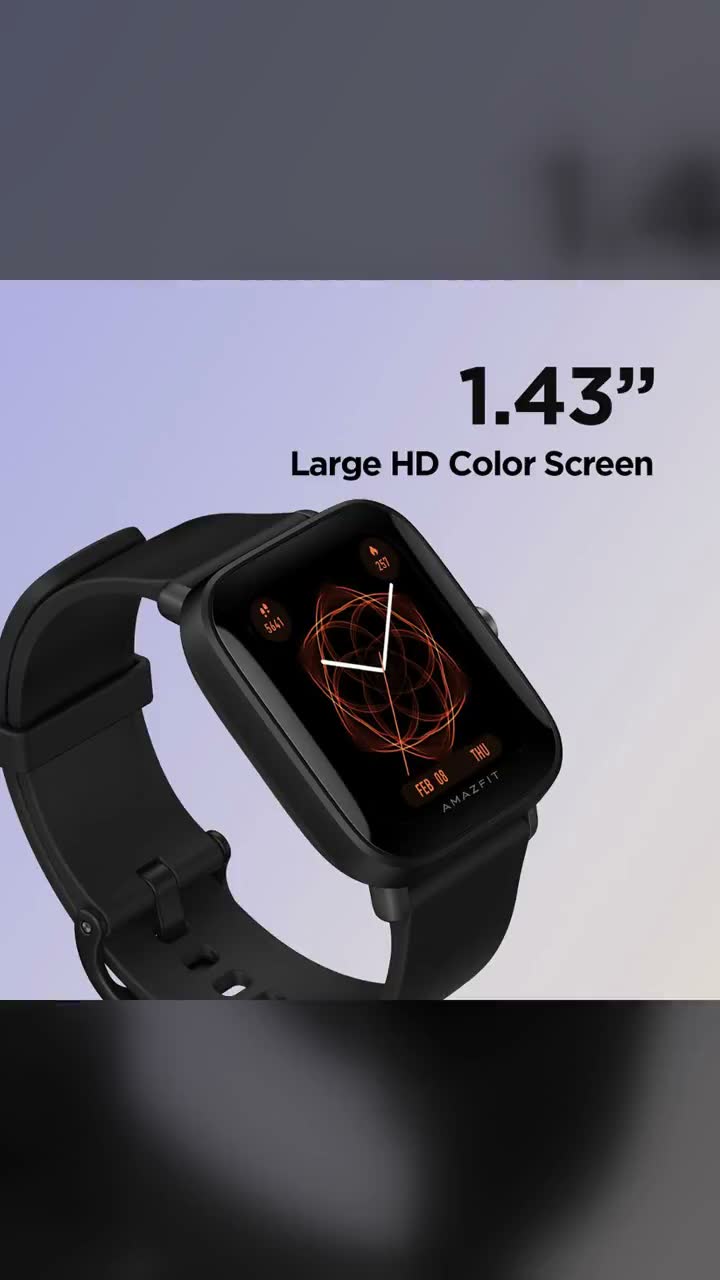 Full-Touch Calling SmartwatchA 1.54-inch touch screen with Bluetooth calling and music controls.Watch the reel →
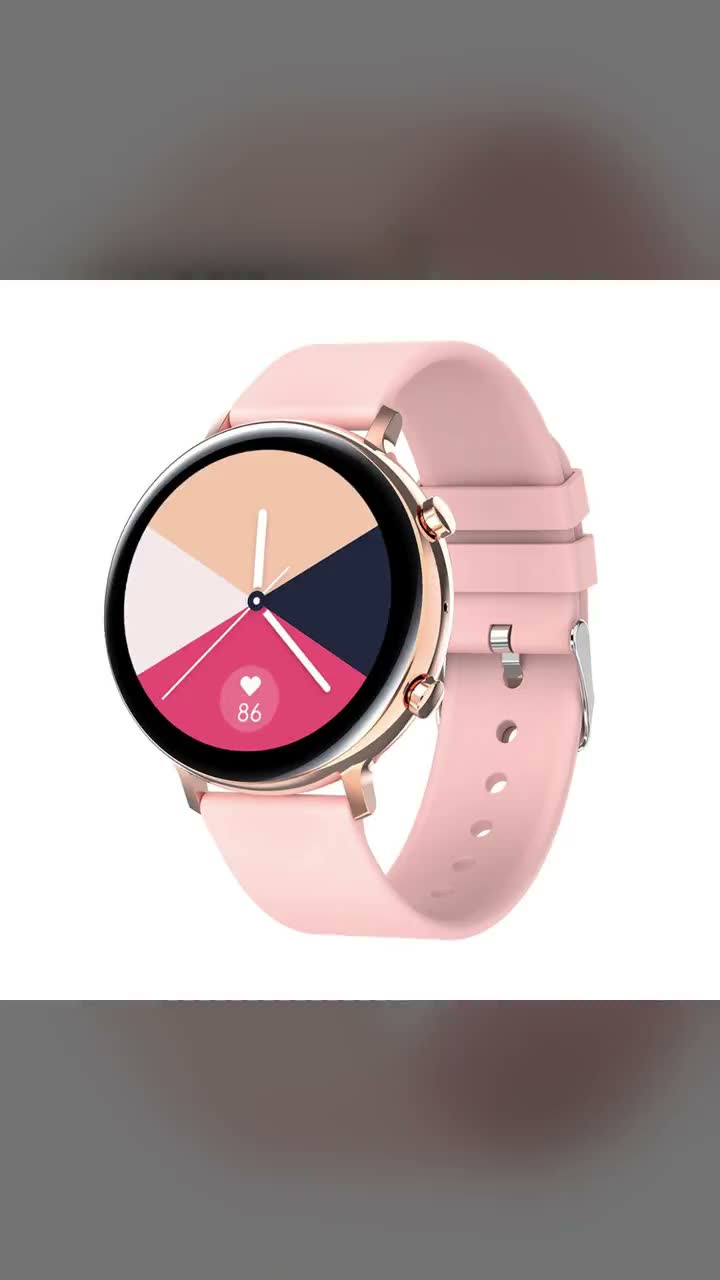 GW33 Smart WatchBluetooth calling with a removable strap.Watch the reel →
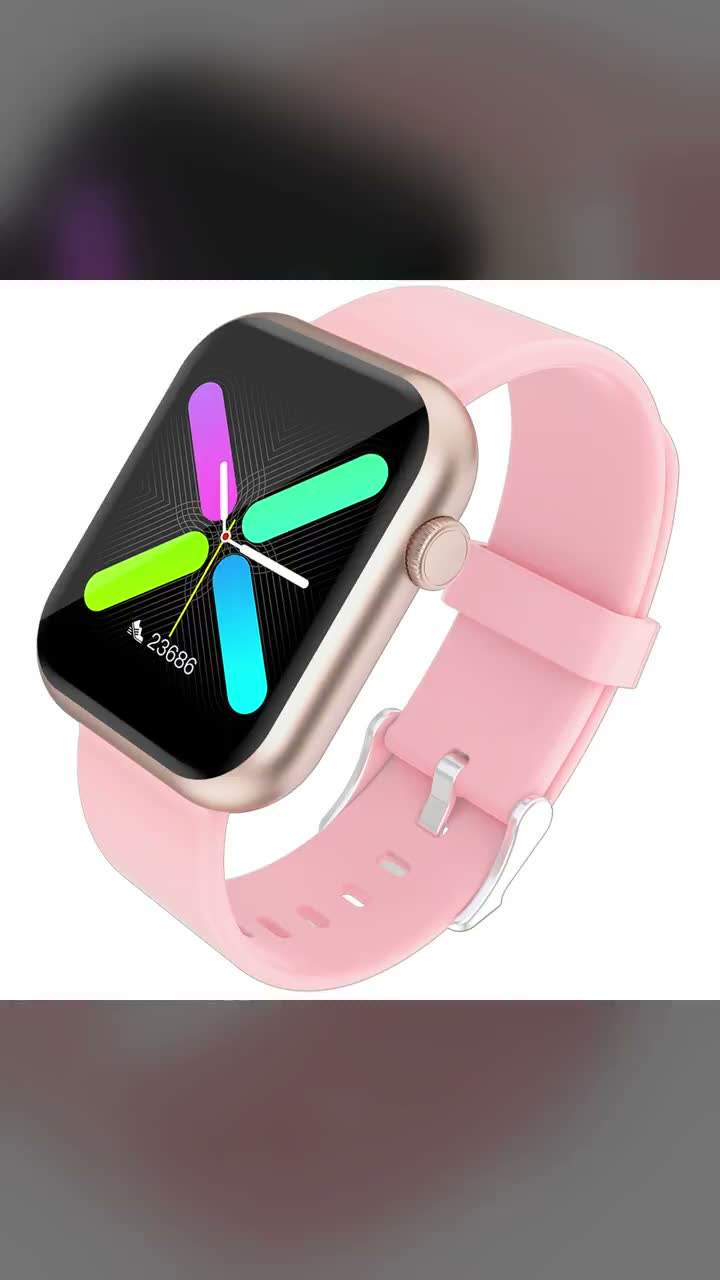 R3L Full Touch Smart WatchA 1.3-inch colour screen that works with Android and iOS.Watch the reel →
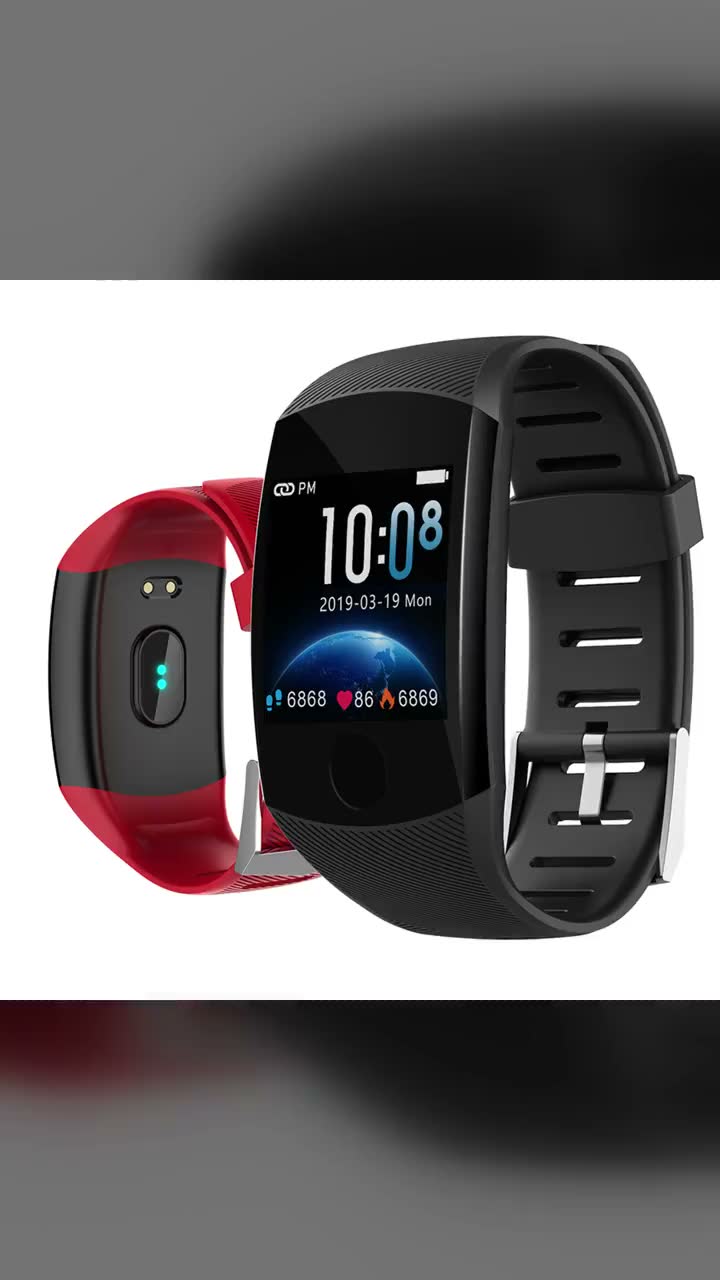 Call Reminder Sports WatchHeart rate, sleep monitoring and call and message reminders.Watch the reel →
Next steps: make the battery last longer and learn how accurate fitness trackers are.
Frequently asked questions
Why can't my phone find my smartwatch?
Pair from the watch's companion app, not the phone's Bluetooth settings, and make sure Bluetooth and, on Android, location permission are on. Charge the watch, keep it close and restart both devices if it still does not appear.
Why do I not get notifications on my smartwatch?
The companion app needs notification access, and on Android it must be exempt from battery optimisation so the phone does not close it. On iPhone, allow notifications in the app and in Settings.
Why does my smartwatch appear twice in Bluetooth settings?
Calling watches use two connections: a low-energy one for the app and data, and a classic one for calls and audio. Pair both when prompted.
Do I need the specific app the manual mentions?
Yes. Budget watches are made to work with one companion app, shown by the QR code in the manual or on the watch. Other fitness apps usually will not pair with them directly.