Tech explained
Why Smart Devices Need 2.4 GHz Wi-Fi (and How to Connect Them)
Most low-cost smart home devices use Wi-Fi chips that only support the 2.4 GHz band, because it reaches further through walls and costs less. If your router combines 2.4 GHz and 5 GHz under one name, pairing can fail; the fix is to connect your phone to 2.4 GHz during setup, or give the 2.4 GHz band its own network name.
"Only supports 2.4 GHz Wi-Fi" appears on most smart plug, sensor and camera listings. It is not a defect: there are good reasons for it. But it is also the number one reason smart devices fail to pair.
2.4 GHz vs 5 GHz in plain terms
| 2.4 GHz | 5 GHz | |
|---|---|---|
| Range and walls | Reaches further, passes walls better | Shorter range, weaker through walls |
| Speed | Slower | Much faster |
| Congestion | Busier, more interference | Less crowded |
| Best for | Smart plugs, sensors, cameras | Streaming, gaming, video calls |
Why smart devices use 2.4 GHz
Smart devices send small bursts of data, so they do not need speed. They do need range, because they sit in hallways, garages and gardens. 2.4 GHz chips are also cheaper and use less power, which keeps devices affordable and batteries lasting longer.
Why pairing fails
Many modern routers broadcast both bands under one network name and decide which band each device uses ("band steering"). During setup, your phone is often on 5 GHz while the device can only hear 2.4 GHz, so the handover fails.
Six fixes that work
- Put your phone on 2.4 GHz for setup. If your router shows both bands separately, join the 2.4 GHz one before you start.
- Split the bands temporarily. In your router's settings, give 2.4 GHz its own name, pair your devices, then merge them again if you like. Paired devices usually reconnect fine.
- Stand near the router during setup, then move the device into place.
- Check the password carefully. Some devices struggle with very long names or unusual characters.
- Use WPA2 or WPA2/WPA3 mixed mode if a device refuses a WPA3-only network.
- Try the other pairing mode. Tuya and Smart Life devices offer a quick mode and a slower "AP" mode for stubborn connections.
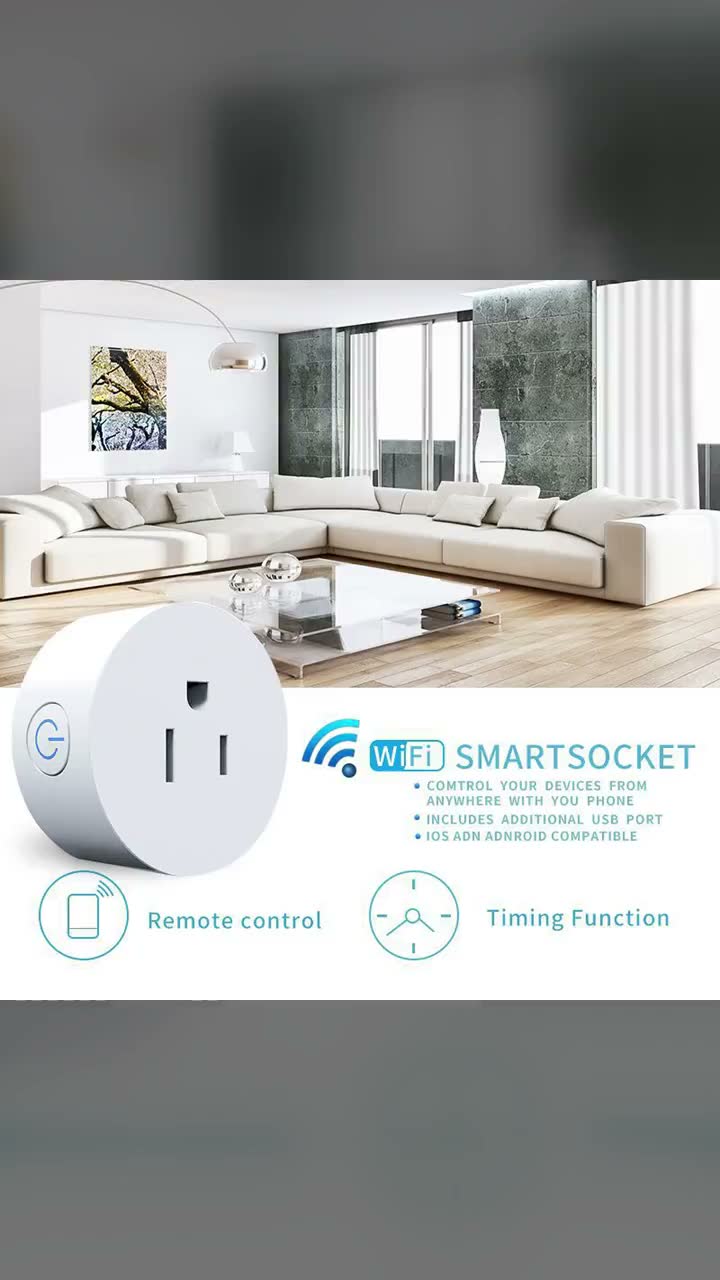 Voice Control Wi-Fi Smart SocketA Tuya smart socket that works with Alexa and Google Home.Watch the reel →
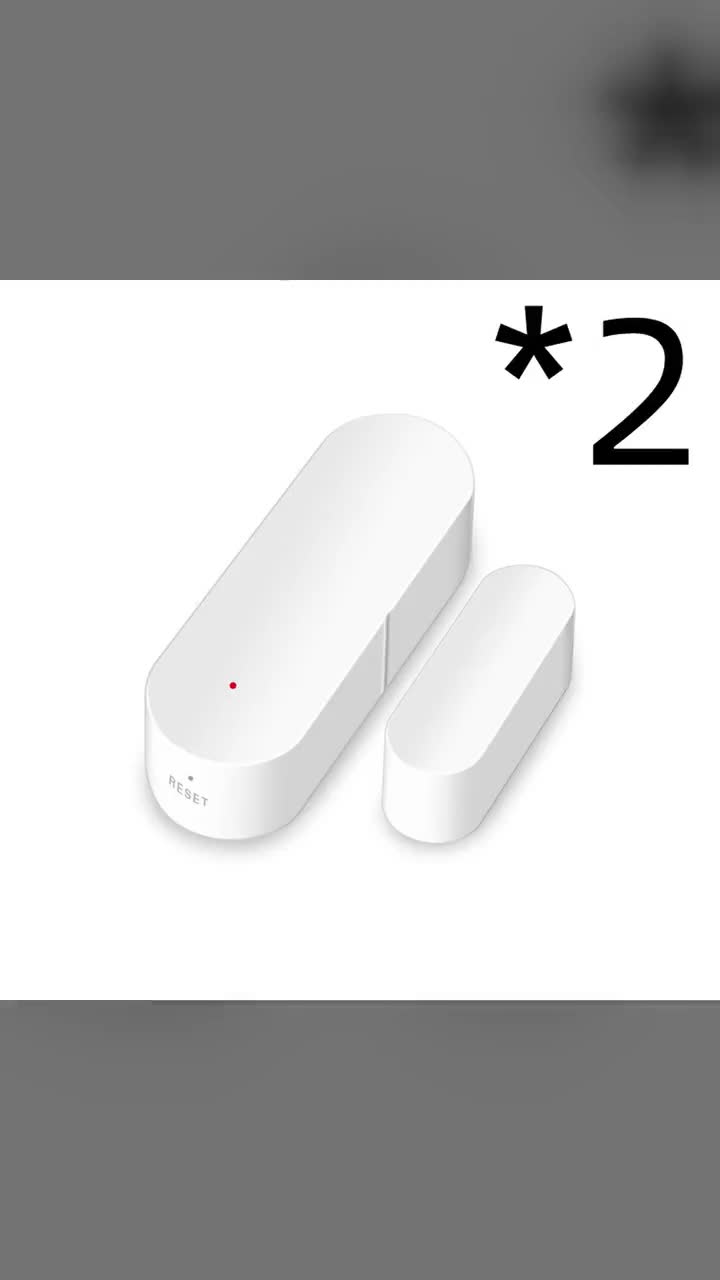 Tuya Wi-Fi Door SensorPhone alerts when a door opens, no hub needed.Watch the reel →
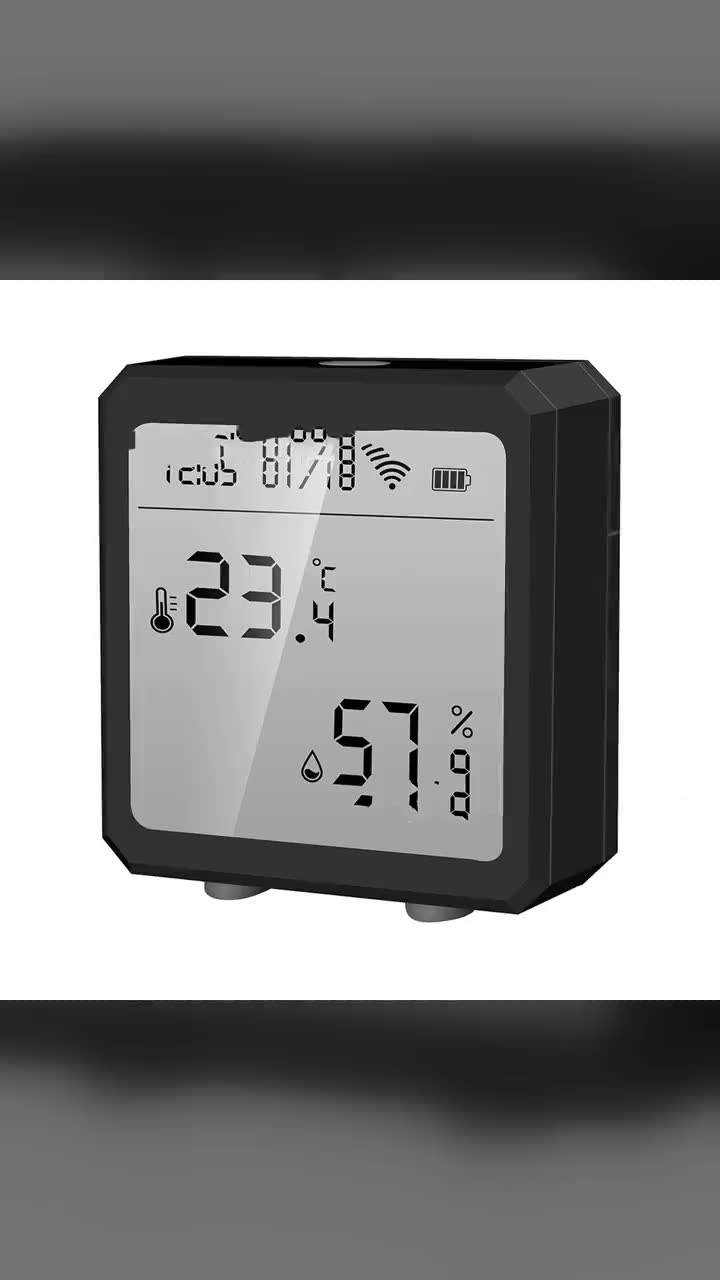 Wi-Fi Temperature & Humidity SensorA 2.4 GHz sensor running on three AAA batteries.Watch the reel →
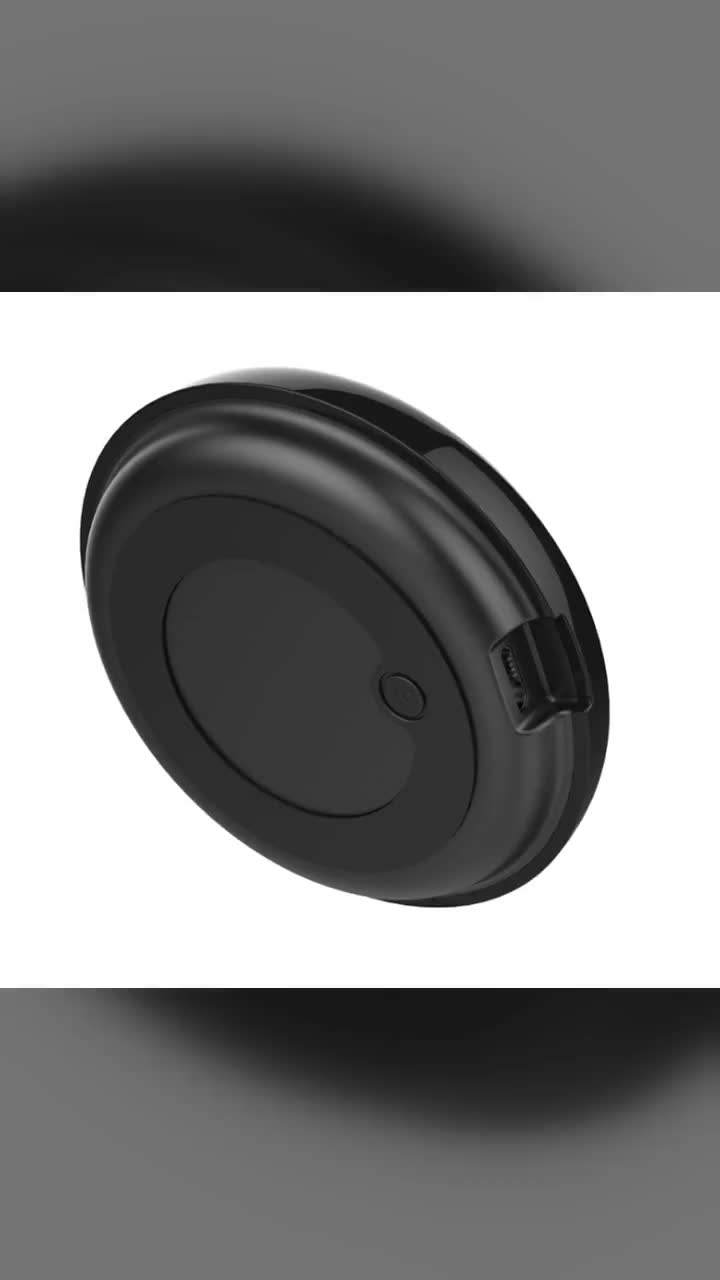 Wi-Fi Universal IR RemoteControls infrared devices such as ACs and TVs from your phone.Watch the reel →
Wi-Fi or a hub?
If you plan to add many battery sensors, a Zigbee hub avoids crowding your router. Our Zigbee vs Wi-Fi guide explains when that makes sense, and the Tuya and Smart Life app guide walks through pairing step by step.
Frequently asked questions
Why won't my smart plug connect to Wi-Fi?
Most often because your phone is on the 5 GHz band or the router combines both bands under one name. Connect your phone to the 2.4 GHz network during setup, keep the plug close to the router and check the password.
Will a 2.4 GHz device slow down my Wi-Fi?
No. Smart plugs and sensors send tiny amounts of data. Your phones and laptops can stay on 5 GHz while smart devices use 2.4 GHz on the same router.
Do I need a separate router for smart devices?
No. One router with both bands is enough. Some people create a separate 2.4 GHz or guest network for smart devices to keep them apart from computers, which is optional.
Does WPA3 cause problems with smart devices?
It can. Some older or cheaper devices only support WPA2. If a device will not join a WPA3-only network, switching the router to WPA2/WPA3 mixed mode usually fixes it.